Stems
How to extract and use stems for extended edits, mashups and transitions
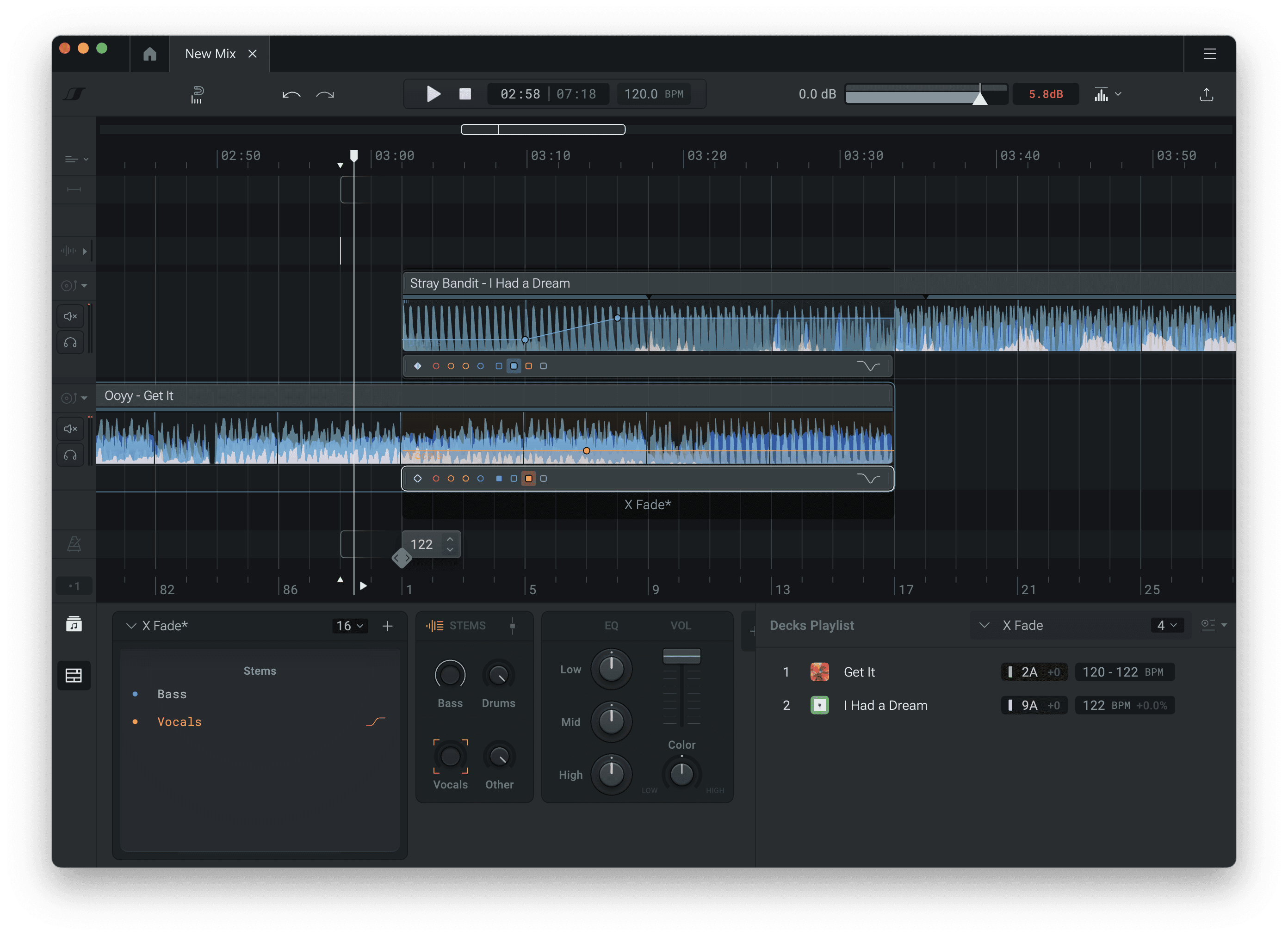
Stems are separate audio layers of a song: bass, drums, vocals and other (melody and harmony). You can mix stems from different tracks, or remove specific layers to create extended edits, mashups and unique transitions.
Stems in the mix editor
Extracting stems for a clip
To extract stems for a clip on the timeline, first select it, then in the bottom panel click on the Split Stems button. While DropLab is processing the track, the panel shows a splitting indicator.
Once complete, the clip waveform is replaced by four individual stem waveforms stacked on top of each other, and the stem panel now shows a group of 4 buttons.
Use the Stem mode toggle on the left of the stems panel to switch stem mode on or off.
Using stem clips
You can copy a segment of a stem and paste it as a new clip onto the timeline. To do this, select a range within a clip with stems available, then right click and hover your mouse over the Copy stems menu item.
The new stem clip will inherit the beat grid of the parent song, so everything is automatically beat synced.
Mixing stems with effect blocks
Effect blocks that fall within the range of a clip with stem mode enabled will automatically include stem effect curves, one per stem. You can use these curves to control the volume of each stem independently throughout the effect block.
Newly created effect blocks do not include stem effect curves by default. To enable stem editing, select the effect block & click on the "EDIT STEMS" button.
Stems in the music library
Extracting stems
To extract stems for a track in your music library, right-click on it and select Extract Stems from the context menu. You can queue multiple songs for stem extraction while it runs in the background.
Locate stem files
Tracks that have extracted stems display a stem icon in the library. Click the stem icon on a track to show that song's individual stems as separate tracks.
To locate the stem files on your computer, right click on a stem and select Show in Finder / File Explorer.
Filtering by stem type
To visualise all the stems in your music library enable the Samples filter. You can click on a specific stem type to filter the view to only show stems of that type across your library.
Deleting stem files
Stem files are saved locally on your machine in the Documents/DropLab/stems directory.
To free up disk space taken by stem files, right-click on a track in the library and select Remove Stems. This ensures DropLab can preserve any mixes that are still using those stem files, as opposed to deleting the files directly from your computer.
Removed and unused stem files are deleted from disk only on the next app launch. Restart the app if needed.