Clip groups
How DropLab automatically groups clips and effect blocks
Clip groups
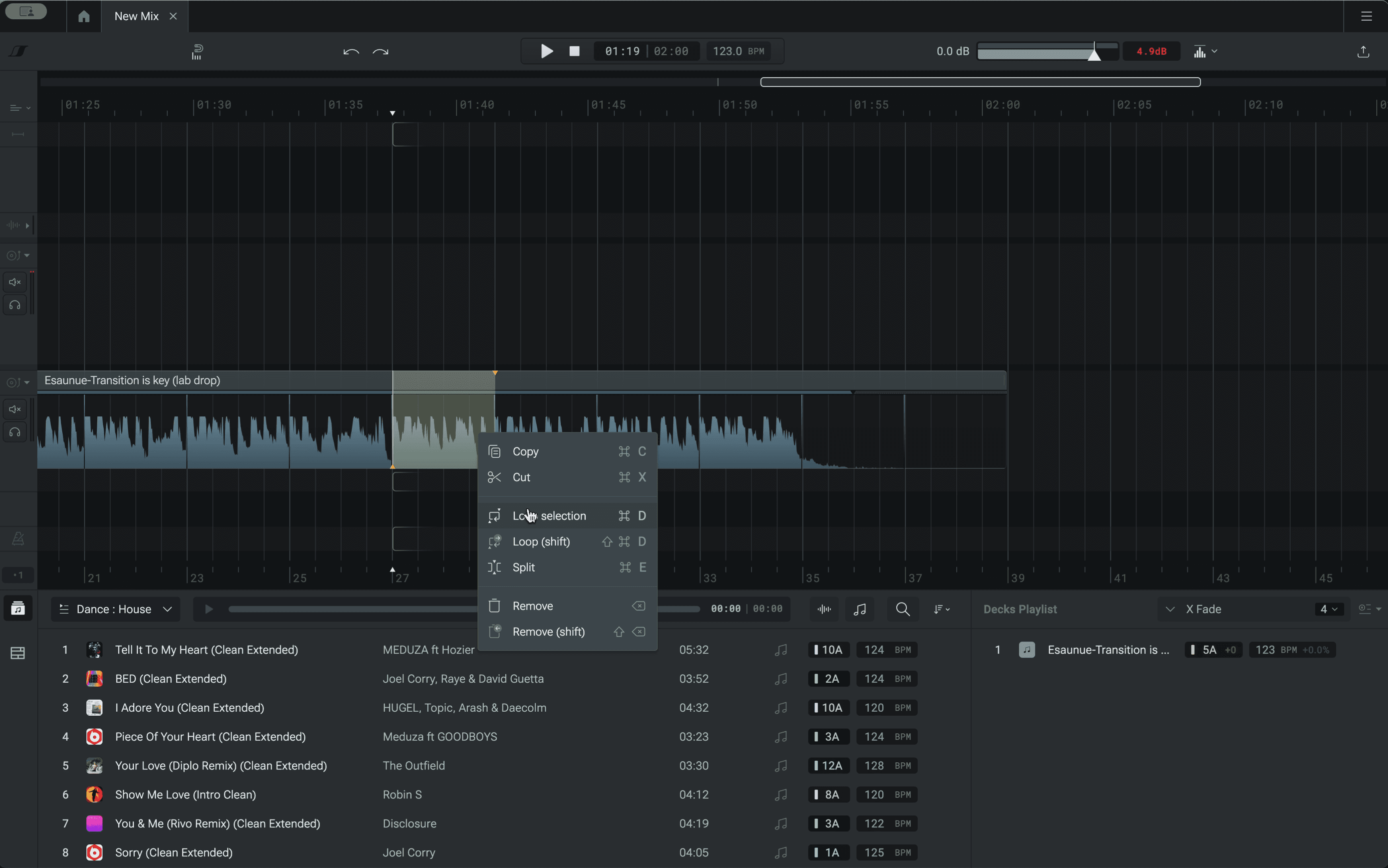
DropLab automatically detects clip groups when you have multiple clips of the same song sitting next to each other on the timeline.
For example, after splitting a song, the resulting two clips are now automatically part of a group. They can be moved together or independently.
The group spans from the start of the first clip till the end of the second clip. So, it can also contain silence.
Clips inside clip groups
To select individual clips inside of a group, you must first select the group, then select the clip.
Notice the selection border for a group has a slightly different color—a light blue instead of white.
Pro tip: you can double-click on a clip to select it individually in one step.
Clip groups with effect blocks
Clip groups can contain any number of clips. They also include the effect blocks that are in the group's range.
This means if you created an arrangement where you are looping the outro section of a track while also applying some effect curves like fading out or EQing, you don't have to worry about keeping them in sync.